
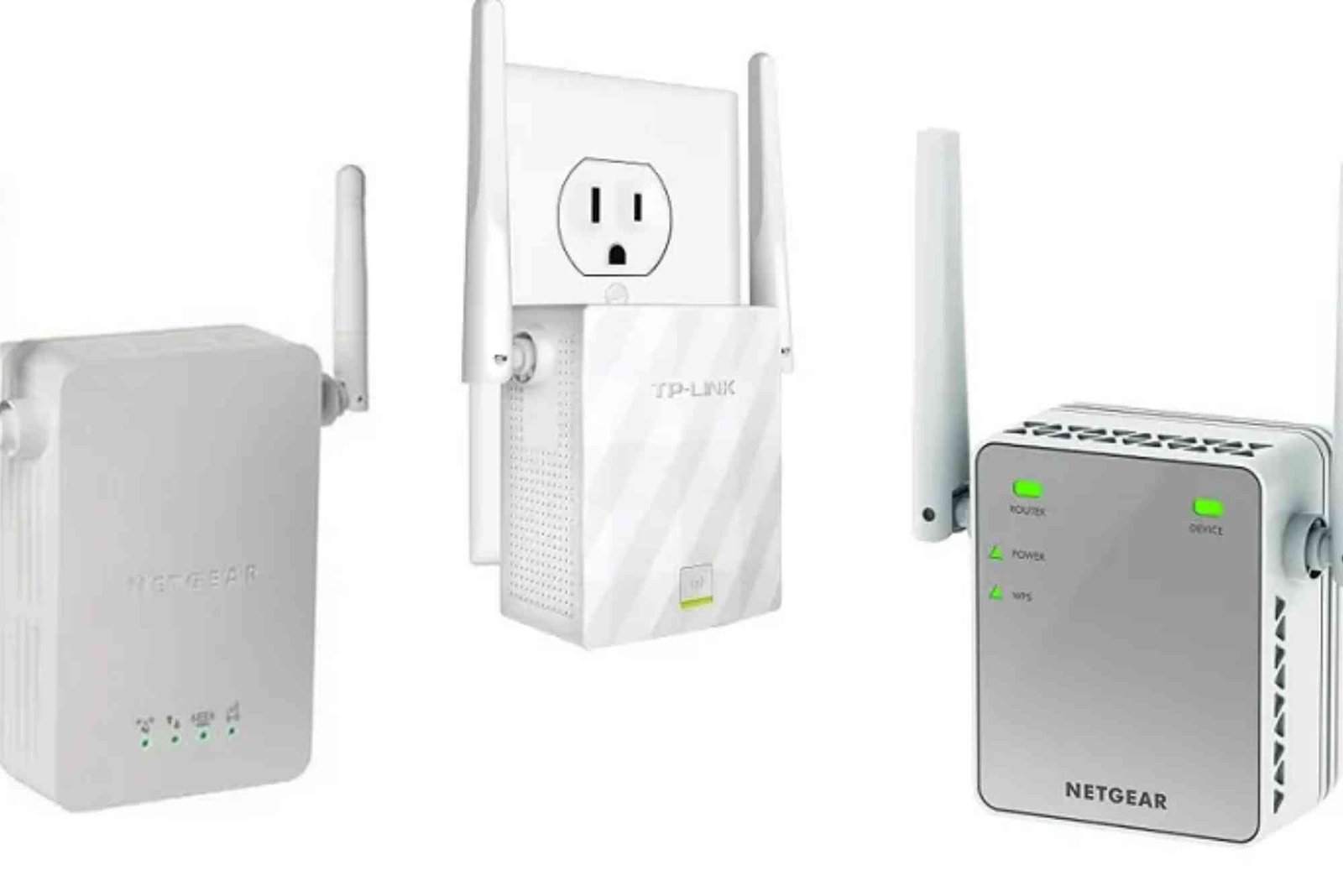
A weak or inconsistent Wi-Fi signal at home can be frustrating, especially when streaming, attending virtual meetings, or gaming. Many users rely on Wi-Fi range extenders to improve coverage. However, a common question arises: should you schedule reboots for your Wi-Fi range extender to keep it running smoothly? This guide explores whether setting a Wi-Fi range extender reboot schedule is necessary, when it helps, and how to do it correctly without causing disruption.
Why Rebooting Network Devices Matters
Even reliable networking devices benefit from occasional resets. Over time, Wi-Fi range extenders accumulate temporary files, cached data, and processing tasks that may slow their performance. Wireless interference, background network traffic, and firmware processes can also strain the device’s memory. When these issues build up, users may experience dropped signals, slower speeds, or intermittent connectivity. Rebooting clears temporary data, refreshes system memory, resets connections, and ensures the extender communicates efficiently with the main router.
Should You Automate Reboots for Your Wi-Fi Range Extender?
Deciding whether to automate reboots depends on usage patterns, device quality, and network stability. Many modern Wi-Fi range extenders are designed to run continuously without manual intervention, especially premium models from reputable brands with updated firmware and smart memory management. However, budget devices or older models may not handle long continuous operation as efficiently, and scheduled reboots can prevent performance degradation.
When Scheduled Reboots Make Sense
Scheduled reboots help in scenarios where you notice your Wi-Fi extender gradually slowing down after days or weeks of use. Users with heavy smart-home setups, multiple streaming devices, or frequent bandwidth spikes often benefit from a reboot routine. In homes where the network handles dozens of connected devices or cloud-backed security cameras, a periodic restart often restores peak performance. For many busy households, rebooting overnight is ideal because it prevents mid-day interruptions.
When You Do Not Need a Reboot Schedule
If your Wi-Fi range extender is newer, receives automatic firmware updates, and rarely slows down, manual reboots only when issues arise are enough. Consistent performance over several weeks indicates your extender handles network load effectively. In such cases, an automated Wi-Fi range extender reboot schedule adds little value and may cause unnecessary downtime while you sleep or run overnight downloads.
Optimal Frequency for Reboots
Most users who schedule reboots find that once per week works well. A weekly reset clears memory without being overly disruptive. Daily reboots are usually unnecessary and can interrupt background tasks such as cloud backups. Conversely, rebooting only once every few months may not adequately prevent slowdowns in busy networks. Finding the right balance depends on device age, firmware quality, and personal internet usage. Start with a weekly restart and adjust depending on performance.


Impact of Scheduled Reboots on Smart Homes
Smart homes rely heavily on constant network availability. Security systems, smart locks, sensors, thermostats, and lighting routines depend on consistent connectivity. Scheduled reboots can briefly disconnect these devices. While most smart devices reconnect automatically, some older models may require manual reconnection. To avoid problems, schedule reboots during times when network downtime has minimal effect, such as early morning hours. If you use a smart security system or monitoring tools that must stay online at night, a weekend midday reboot might be better.
Tips for Smooth Reboots Without Network Disruption
Although rebooting improves performance, doing it incorrectly can create frustration. Before scheduling reboots, ensure your extender’s firmware is updated. Manufacturers regularly release updates that improve stability and memory management. For the smoothest experience, avoid rebooting the extender while downloading large files, updating devices, or backing up important data. If your extender supports scheduled tasks, use the built-in timer for consistent restarts. If not, a smart plug with scheduling features provides an easy automation method without accessing device firmware settings.
How a Range Extender Reboot Differs From Router Reboots
Many users ask whether the extender or router is responsible for signal issues. While the router serves as the network’s brain, the extender acts like a translator expanding the coverage area. Rebooting the router resets the core network, while rebooting the extender refreshes the extended connection. Both benefit from periodic restarts, but if you notice performance issues only in certain areas rather than the whole network, the extender is the likely bottleneck. Therefore, scheduling reboot routines for both devices may be appropriate in some homes.
Can Reboots Fix Speed Problems?
A reboot can temporarily restore top performance by clearing stalled processes and refreshing wireless sessions. However, if you see frequent slowdowns despite scheduled restarts, the issue may not be memory-related. Other causes include poor extender placement, outdated Wi-Fi standards, interference from walls or appliances, or insufficient bandwidth from your internet provider. Reboots help with temporary glitches, not structural signal limitations. If you still face performance challenges after optimizing reboot schedules, consider upgrading to a mesh Wi-Fi system.
The Role of Firmware Updates
Firmware updates are more impactful than scheduled reboots. Manufacturers continually refine performance, improve stability, and patch security vulnerabilities through firmware releases. Before relying on reboots for stability, check your extender’s update settings. If automatic firmware updates are available, enable them. If not, periodically visit your device manufacturer’s support page. Reliable firmware reduces the need for routine restarts and ensures long-term network performance.
Does Manual Reboot Work Better?
Some users believe pressing the physical power button or unplugging the extender offers a stronger reset than automatic software reboots. In reality, both methods clear memory and restart processes similarly. Manual reboots are only necessary when the device freezes or becomes unresponsive. For consistent maintenance, scheduled reboots are sufficient, convenient, and safer than repeatedly unplugging hardware.
Real-World Experience and Best Practices
Network technicians recommend a simple philosophy: if your extender runs smoothly, avoid unnecessary intervention. Many offices and professional environments run networking equipment continuously without frequent restarts because commercial hardware is engineered for high uptime. Consumer equipment may not be as robust, but the same principle applies. Observe your network’s behavior, monitor performance after heavy usage days, and use reboot schedules as a preventive measure rather than a daily habit. Balance convenience, reliability, and uptime to find the ideal maintenance routine.
Internal Resource for Networking Support
For professional assistance, installations, or troubleshooting beyond simple maintenance, visit Dhanote Internet Services for reliable support and expert guidance.
Frequently Asked Questions
Is it good to restart my Wi-Fi extender?
Restarting your Wi-Fi extender occasionally helps refresh memory and restore performance. It resolves temporary connectivity issues and improves consistency in areas with heavy wireless traffic. Scheduled reboots are beneficial only if you see performance drops over time.
How often should I reboot my Wi-Fi extender?
Most users benefit from a weekly reboot schedule. Heavy network environments may require more frequent restarts, while high-quality extenders may function for months without intervention. Adjust the schedule based on observed performance.
Will rebooting my Wi-Fi extender improve speed?
A reboot often restores temporarily lost speed by clearing cached processes and refreshing connections. However, it does not increase your internet plan’s bandwidth. If you consistently see slow speeds, placement or hardware limitations may be causing the issue.
Can I leave my Wi-Fi extender on all the time?
Yes. Wi-Fi range extenders are designed for continuous operation. Leaving the device on does not harm it. If you notice slowdowns, reboot as needed or create a gentle weekly schedule.
How do I schedule a reboot on a Wi-Fi extender?
Some extenders offer built-in reboot scheduling inside their settings menu. If yours does not, you can use a smart plug to power-cycle the device at chosen times. Ensure the schedule does not interrupt important online activities.
Scheduling reboots for your Wi-Fi range extender can help maintain speed and stability in busy home networks, especially if you notice gradual signal degradation over time. While many modern devices perform well without scheduled reboots, older or budget models often benefit from a weekly refresh. Monitor your extender’s performance and choose a reboot routine that fits your household’s internet usage without disrupting critical smart-home functions.
For more reliable connectivity, professional setup, and customized network optimization, explore services from Dhanote Internet Services. If you are experiencing ongoing performance issues, consider upgrading your equipment or seeking expert installation support. Keep your network optimized, stay connected smoothly, and ensure every corner of your home receives strong, consistent Wi-Fi coverage.
Related Reading: Wi-Fi Range Extender for Multiple Floors
Related Reading: Wi-Fi Range Extender With Ethernet Port
Related Reading: Best Wi-Fi Range Extender Apps — full guide