
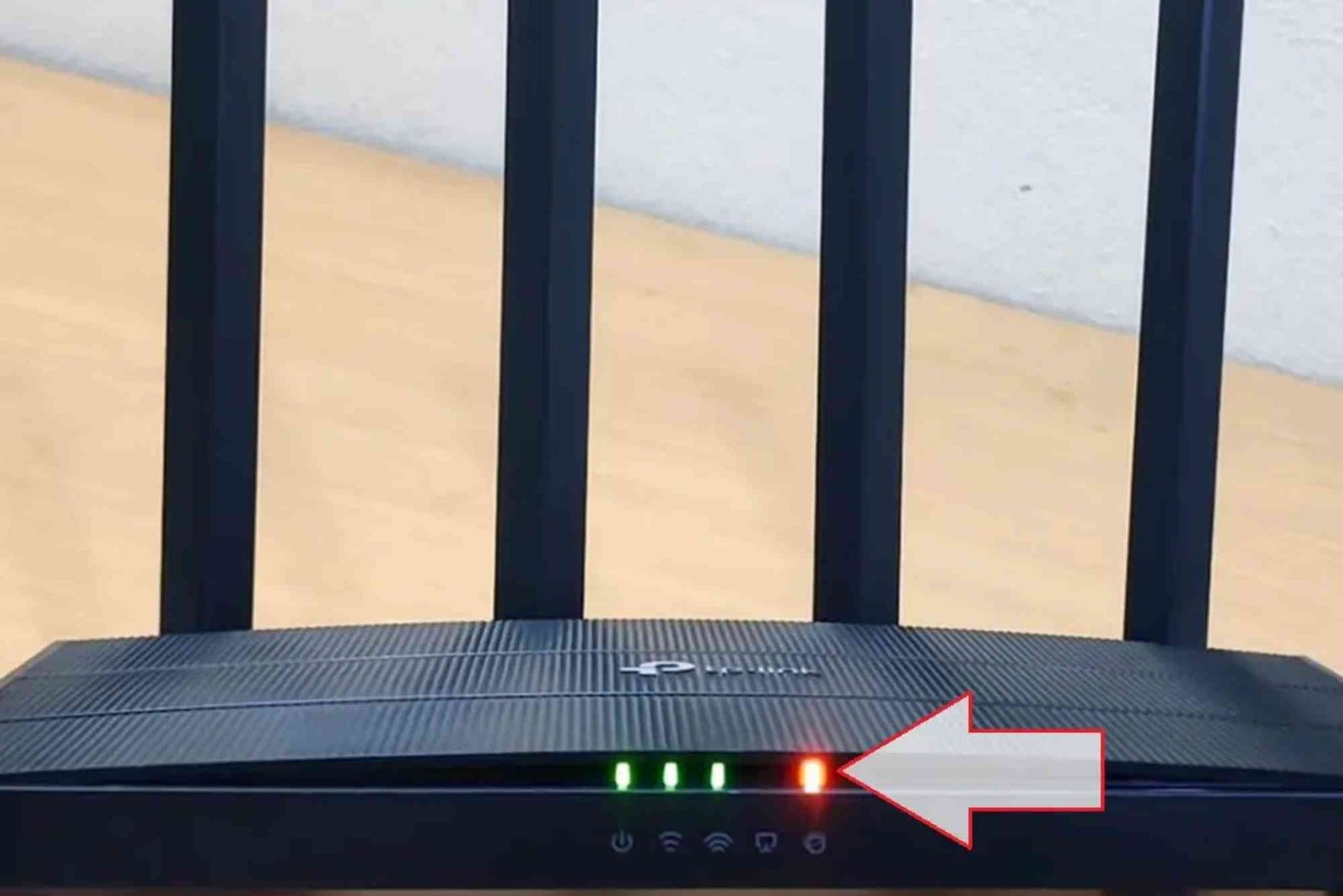
How to Enable MU-MIMO for Faster Wi-Fi on Multiple Devices
If your home has multiple devices connected to the internet, you may have noticed slowdowns when everyone is online at the same time. The solution is enabling MU-MIMO. In this guide, we’ll explain how to enable MU-MIMO on router, why it matters, and how it can make your Wi-Fi faster and smoother for every device.
What is MU-MIMO and Why Does It Matter?
Understanding MU-MIMO
MU-MIMO stands for Multi-User Multiple Input, Multiple Output. It’s a Wi-Fi technology that allows a router to communicate with several devices simultaneously instead of handling them one by one.
Benefits of MU-MIMO
- Faster speeds for multiple devices
- Reduced lag in online gaming and video calls
- Smoother 4K video streaming
- Efficient use of router bandwidth
Simply put, enabling MU-MIMO ensures that your Wi-Fi can keep up with the demands of a modern smart home.
How to Check if Your Router Supports MU-MIMO
Before learning how to enable MU-MIMO on router, confirm that your device supports this feature.
- Check Router Specifications – Look for MU-MIMO in the product description or user manual.
- Access Router’s Admin Panel – Some routers clearly display MU-MIMO support in settings.
- Check Wi-Fi Standard – MU-MIMO is available in Wi-Fi 5 (802.11ac Wave 2) and newer Wi-Fi 6/6E routers.
If your router doesn’t support MU-MIMO, consider upgrading to a newer model.
How to Enable MU-MIMO on Router
Now let’s walk through enabling MU-MIMO for better Wi-Fi performance.


Log in to Your Router’s Admin Panel
- Open a browser and type your router’s IP address (commonly 192.168.1.1).
- Enter your username and password.
Locate Wireless Settings
- Navigate to the Wireless or Advanced Wireless section.
- Look for MU-MIMO settings, often found under Advanced Features.
Enable MU-MIMO
- Toggle the MU-MIMO option to “Enable.”
- Some routers also have options like “Beamforming” and “OFDMA.” Enable them for even better performance.
Save and Reboot
- Save your changes.
- Restart your router to apply new settings.
Once enabled, your Wi-Fi will handle multiple devices much more efficiently.
Troubleshooting MU-MIMO Issues
Sometimes enabling MU-MIMO may not improve performance immediately. Here’s what you can do:
Check Device Compatibility
Not all devices support MU-MIMO. Smartphones, laptops, and smart TVs with Wi-Fi 5 or higher usually work best.
Update Router Firmware
Old firmware can cause bugs. Updating ensures MU-MIMO runs smoothly.
Reposition Your Router
Place the router in a central location for even coverage across devices.
Reset and Reconfigure
If issues persist, reset your router and enable MU-MIMO again.
Optimizing Wi-Fi Alongside MU-MIMO
Enabling MU-MIMO is just one step. To maximize performance:
Use Dual-Band or Tri-Band Routers
Separate devices across 2.4 GHz and 5 GHz bands for balanced traffic.
Prioritize Devices with QoS
Quality of Service (QoS) lets you assign more bandwidth to gaming or streaming devices.
Secure Your Network
An overloaded Wi-Fi slows down even with MU-MIMO. Keep your network password-protected to prevent unauthorized usage.
Real-Life Example: Faster Internet for Homes
Many people in busy households face speed issues when multiple family members are online. For example, a family in Pakistan using Dhanote Internet Services enabled MU-MIMO on their router and noticed faster streaming and smoother video calls across all devices.
This simple setting upgrade made their internet feel brand new—without switching providers.
FAQs
Does MU-MIMO really make Wi-Fi faster?
Yes, it increases efficiency by serving multiple devices at once, reducing lag and buffering.
Do all routers support MU-MIMO?
No. Only Wi-Fi 5 (Wave 2) and newer routers have this feature.
Do all devices benefit from MU-MIMO?
Only devices with MU-MIMO support will see improvements. Older devices will still connect normally.
Should I enable MU-MIMO on my router?
Absolutely. If your router supports it, enabling MU-MIMO improves performance for households with many connected devices.
How do I know if MU-MIMO is working?
You’ll notice smoother streaming, faster downloads, and fewer Wi-Fi slowdowns when multiple devices are active.
Now you know exactly how to enable MU-MIMO on router and why it’s a game-changer for multiple devices. By enabling this feature, updating firmware, and optimizing router placement, you can enjoy faster, more reliable Wi-Fi at home.