
Introduction
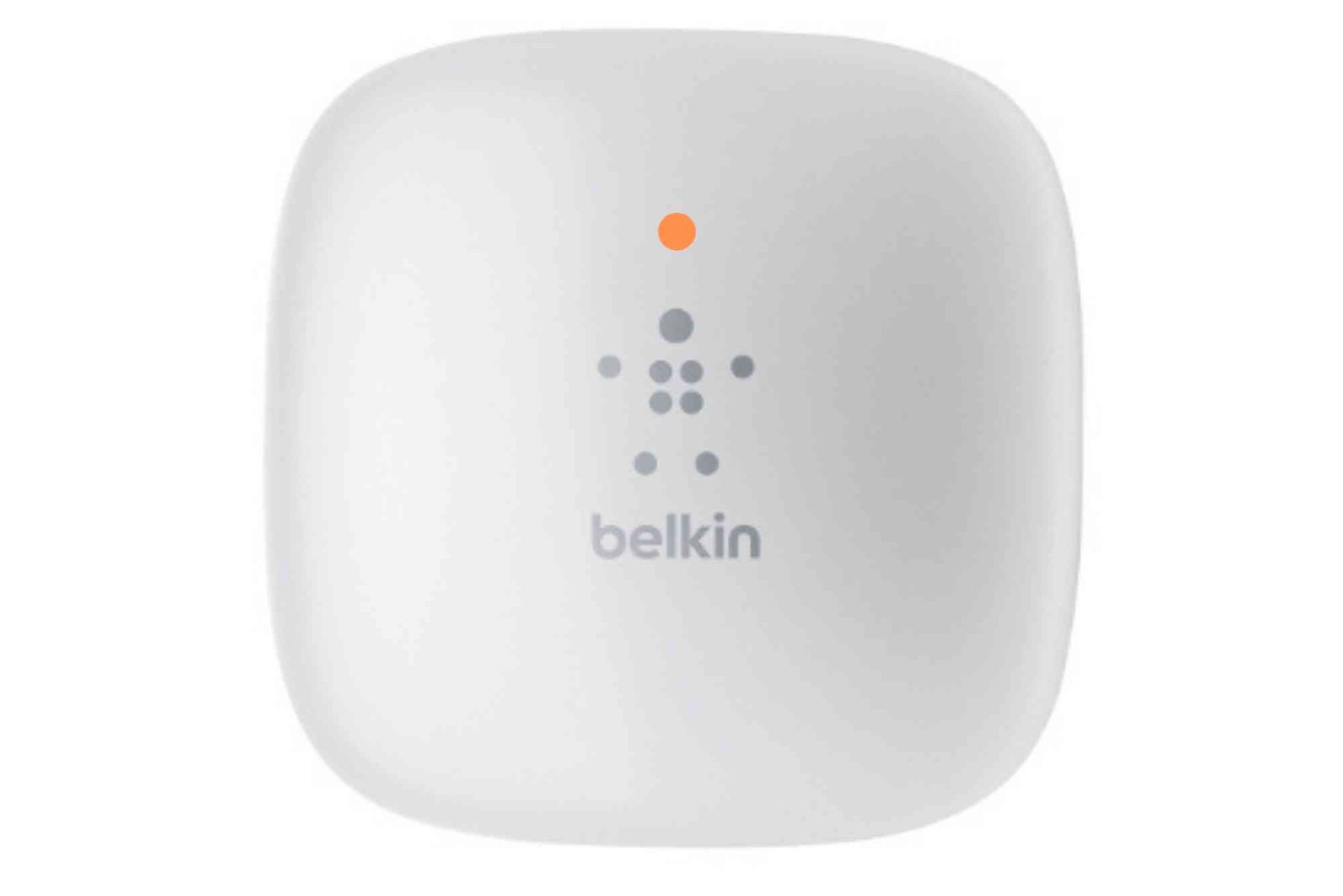
A Wi-Fi range extender is designed to boost your internet coverage by extending the router’s signal. However, users often face an issue where the device shows a blinking orange light. If you have ever wondered what the Wi-Fi range extender blinking orange light means, you are not alone. This light can signal connectivity problems, weak signals, or even setup errors.
Understanding the reason behind this blinking indicator is essential to restore smooth internet connectivity in your home or office. In this guide, we’ll explore the meaning of this issue, common causes, troubleshooting steps, and practical solutions to get your network back on track.
Why Does a Wi-Fi Range Extender Blink Orange?
The blinking orange light is not just a random occurrence—it indicates that your extender is struggling with either connectivity or performance. While exact meanings vary by brand, most extenders use this light as a warning.
Weak Signal from Router
If your extender is too far from your router, the signal it receives becomes unstable. The blinking orange light usually signals weak or intermittent communication between the router and extender.
Setup or Configuration Issues
Improper setup can confuse the extender, preventing it from establishing a stable link. If the configuration process was incomplete or incorrect, the orange light will blink continuously.
Firmware Problems
Extenders, like any device, need firmware updates to function optimally. Outdated or corrupted firmware can cause repeated blinking.


Network Interference
Interference from nearby electronics, microwaves, or overlapping Wi-Fi networks can disrupt the extender’s connection. This often results in the blinking orange warning.
Hardware Malfunction
In rare cases, the orange light may indicate a failing extender or router hardware. This problem usually comes after years of heavy usage.
How to Fix a Wi-Fi Range Extender Blinking Orange Light
Fixing this issue doesn’t always require technical expertise. Most solutions are simple and involve adjusting settings or placement.
Check Placement and Signal Strength
Ensure the extender is placed within a proper range of your router. If it is too far, it cannot pick up a strong enough signal. Ideally, position it halfway between your router and the area needing coverage.
Restart Devices
A simple restart can fix temporary glitches. Power off your extender and router, wait 30 seconds, and then restart them. Often, this clears the blinking orange issue.
Reconfigure the Extender
If placement isn’t the problem, recheck the configuration. Most extenders have a reset button. Press and hold it, then reconnect following the manufacturer’s setup guide.
Update Firmware
Go to the extender’s admin dashboard and check for firmware updates. Installing the latest version can fix bugs causing the orange blinking.
Reduce Interference
Keep the extender away from cordless phones, microwaves, or large metal objects. Switching to a less crowded Wi-Fi channel can also help.
Check Internet Service Provider (ISP) Status
Sometimes, the problem isn’t your devices but your internet provider. Contact your ISP or check their outage notifications before making drastic changes.
Brand-Specific Meanings of the Blinking Orange Light
While the general reasons remain the same, brands interpret blinking orange differently.
Netgear
A Netgear extender blinking orange often means weak connection or failed firmware. Rebooting and updating usually resolve it.
TP-Link
TP-Link extenders show orange when the extender fails to link with the router. Re-pairing usually fixes the issue.
Linksys
For Linksys devices, an orange blinking light means poor placement. Moving the extender closer to the router should solve it.
D-Link
On D-Link extenders, it may point to authentication errors. Resetting the password and reconfiguring usually resolves it.
Preventing the Orange Light Issue
Prevention is always better than troubleshooting. A few habits can keep your extender working smoothly.
Regular Updates
Keep the extender firmware and router software updated. This ensures compatibility and reduces glitches.
Strategic Placement
Always place the extender in an area with strong router signals. Avoid hidden corners or basements where walls block signals.
Monitor Bandwidth Usage
Too many devices on one extender can overload it. Distribute devices between router and extender for better balance.
Invest in Quality Internet Services
Reliable ISPs minimize chances of frequent disruptions. Services like Dhanote Internet Services provide stable and strong connections, reducing extender stress.
FAQs
Why is my Wi-Fi range extender blinking orange but still working?
The blinking orange light often signals weak connectivity. While it may still work, your speeds will likely be unstable.
Does a blinking orange light mean my extender is broken?
Not necessarily. It usually points to placement or connection issues. Only in rare cases does it indicate hardware failure.
How do I know if my extender is in the right place?
Most extenders have signal indicators. A solid green or blue light usually means strong placement, while orange means poor location.
Can interference cause the blinking orange light?
Yes. Devices like cordless phones, microwaves, or even neighboring Wi-Fi signals can cause interference leading to the issue.
Should I reset my extender if the orange light keeps blinking?
Yes. Resetting restores factory settings and often clears setup-related issues. Reconfigure afterward to regain a stable connection.
Is it better to buy a new extender if the orange light persists?
If updating, resetting, and repositioning fail, and your extender is several years old, replacing it may be the best solution.
A Wi-Fi range extender blinking orange light is a sign that something needs attention—whether it’s placement, settings, or updates. Most of the time, the issue is minor and can be resolved by restarting, reconfiguring, or updating firmware. However, persistent problems may indicate interference or outdated hardware.