
Troubleshoot Router Not Connecting to Internet
A home or office network can stop working without warning. One of the most common issues users face is when the router doesn’t connect to the internet. If you’ve ever wondered how to troubleshoot router not connecting to internet, this guide will walk you through practical steps to get your connection back.
Whether you are working from home, gaming online, or simply streaming movies, a stable internet connection is essential. By understanding common causes and applying proven fixes, you can restore connectivity in no time.
Why Your Router May Not Connect to the Internet
Before fixing the problem, it’s important to understand why it happens. Routers act as the bridge between your devices and the internet. When this bridge breaks, connectivity drops.
Common causes include:
- ISP (Internet Service Provider) outages.
- Loose or damaged cables.
- Incorrect router configuration.
- Overloaded bandwidth usage.
- Outdated firmware or hardware issues.
- DNS or IP conflicts.
Guide to Troubleshoot Router Not Connecting to Internet
Below are proven methods to diagnose and fix router connectivity problems.
Check Internet Service Provider (ISP) Status
Your ISP might be the problem, not your router. Contact customer support or check their website for outage reports. For reliable connectivity in Pakistan, many users trust Dhanote Internet Services due to their consistent uptime and customer support.
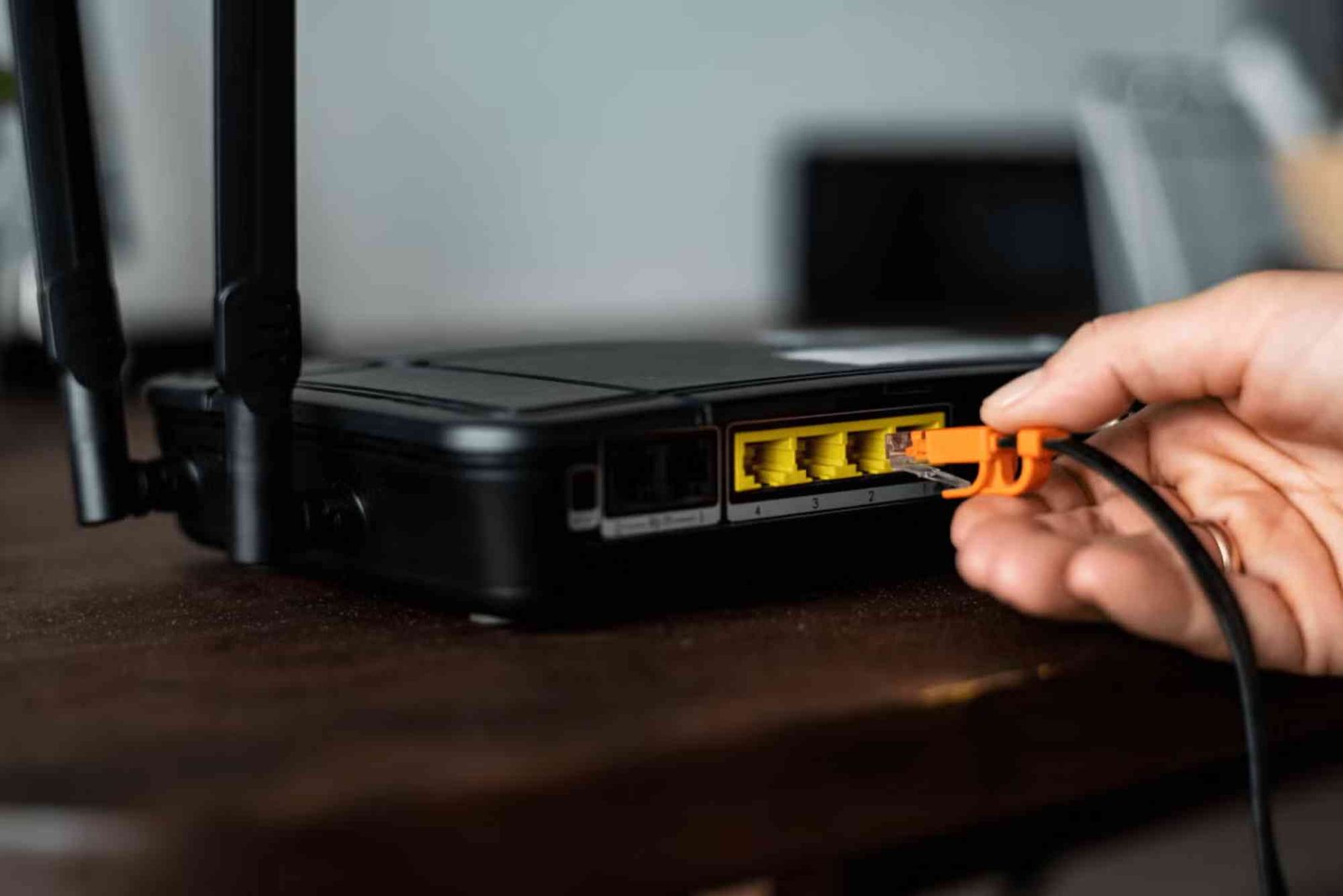
Inspect Physical Connections
Loose or damaged cables are often overlooked.


- Ensure the power cable is secure.
- Verify the Ethernet cable is plugged into the correct port.
- Replace damaged cables if needed.
Restart Your Router and Modem
Power cycling often solves temporary glitches.
- Turn off both the modem and router.
- Wait at least 30 seconds.
- Restart them in sequence: modem first, then router.
Verify Wi-Fi and Device Settings
Sometimes the issue lies with your device.
- Make sure Wi-Fi is enabled.
- Forget the network and reconnect.
- Check if Airplane Mode is disabled.
Run Network Troubleshooter
Both Windows and macOS include built-in troubleshooters.
- On Windows: Go to Settings > Network & Internet > Status > Network Troubleshooter.
- On macOS: Use Wireless Diagnostics.
Check Router Lights
The lights on your router provide useful status information.
- Power light should be solid.
- Internet light should be stable, not blinking red.
- Wi-Fi light should blink when devices connect.
Update Router Firmware
Manufacturers release firmware updates to fix bugs and improve performance.
- Log into your router’s admin panel.
- Navigate to firmware update settings.
- Install available updates and restart.
Reset Router to Factory Settings
If all else fails, resetting the router may resolve the issue.
- Locate the reset button (usually at the back).
- Hold it for 10–15 seconds.
- Reconfigure your Wi-Fi network.
Advanced Fixes for Persistent Issues
If the problem continues, try these more technical solutions.
Configure DNS Manually
Sometimes DNS server issues cause disruptions.
- Change your DNS to Google (8.8.8.8, 8.8.4.4) or Cloudflare (1.1.1.1).
Assign a Static IP Address
If your device faces IP conflicts, manually assign a static IP.
- On Windows: Control Panel > Network and Sharing > Adapter Settings > Properties.
- On macOS: System Preferences > Network > Advanced.
Reduce Network Load
If multiple devices stream or download simultaneously, your router may struggle. Limit heavy use to free up bandwidth.
Replace Outdated Hardware
If your router is over five years old, it may not handle modern speeds. Upgrading to a newer model can resolve ongoing problems.
Preventing Future Router Issues
To avoid repeated problems, adopt these best practices:
- Place your router in a central, elevated location.
- Regularly update firmware.
- Restart your router weekly to clear memory.
- Secure your network with a strong password.
- Consider investing in a backup ISP such as Dhanote Internet Services for redundancy.
FAQs on Troubleshooting Router Internet Problems
Why is my router not connecting to the internet even with full Wi-Fi signal?
A full Wi-Fi signal only means your device is connected to the router, not the internet. The issue could be with your ISP, cables, or router settings.
How do I know if my router is faulty?
If your router frequently drops connections, overheats, or doesn’t respond after resets, it may be faulty and need replacement.
Should I reset my router often?
No. Resetting should be a last resort. Regularly restarting it is fine, but factory resets erase all configurations.
Can too many devices cause my router to stop working?
Yes. Excessive devices can overload your router’s bandwidth and processing, leading to disconnections.
Do I need a new router if the internet is slow?
Not always. First, troubleshoot settings and cables. If the problem persists and the router is outdated, consider upgrading.
Knowing how to troubleshoot router not connecting to internet saves time and frustration. From checking ISP status to resetting routers and configuring DNS, these steps can restore connectivity quickly.