
TP Link WiFi Router Login: A Complete Step-by-Step Guide
If you’ve ever needed to change your WiFi name, boost internet speed, or set parental controls, chances are you’ve looked for the TP Link WiFi router login process. TP Link is one of the world’s most reliable router brands, but even the best routers need proper setup and maintenance.
Understanding how to access your TP Link router settings is essential. Whether you’re a beginner or just need a refresher, this guide will help you log in to your TP Link WiFi router and manage your home network with ease.
Why Access Your TP Link Router?
Before diving into the login steps, it’s important to understand why logging into your TP Link router matters. This access gives you control over:
Changing WiFi network name (SSID)
Updating the WiFi password
Setting up guest networks
Managing connected devices
Enabling parental controls
Improving network security
Updating firmware for better performance


All these configurations help protect your privacy, improve speed, and customize your network to suit your needs.
How to Perform TP Link WiFi Router Login
You don’t need to be a tech genius to log into your TP Link router. Just follow these simple steps:
Connect to the TP Link Network
Before anything else, make sure your device (laptop, phone, or PC) is connected to the TP Link WiFi network. You can connect either wirelessly or via Ethernet cable.
Open a Web Browser
Launch your preferred web browser such as Chrome, Firefox, or Safari. In the address bar, type the router’s default gateway:
Alternatively, you can use:
Press Enter after typing the address.
Enter Username and Password
You’ll now see the TP Link login page. The default credentials are usually:
Username: admin
Password: admin
If these don’t work, you might have changed them earlier. In that case, try the new ones. If forgotten, you may need to reset the router.
Access the Admin Panel
Once logged in, you’ll be directed to the TP Link router admin interface. From here, you can view and change all router settings. Navigation is usually user-friendly, with tabs for wireless settings, security, DHCP, parental controls, and more.
Changing Your WiFi Name and Password
For security reasons, it’s always a good idea to change the default network name (SSID) and password.
How to Change WiFi Name (SSID)
Go to Wireless > Wireless Settings
Under “Wireless Network Name”, type your preferred name
Click Save
How to Change WiFi Password
Navigate to Wireless > Wireless Security
Choose WPA/WPA2 Personal
Enter your desired password
Click Save
Changing these settings disconnects all devices. Reconnect using the new credentials.
Resetting the TP Link Router
If you forget your TP Link WiFi router login credentials or face connection issues, a reset may be necessary.
How to Reset
Locate the reset button on the back of the router
Use a paperclip or pin to press and hold the button for 10 seconds
Wait for the router to reboot
This restores factory settings. Afterward, use default credentials to log in.
Updating TP Link Firmware
Firmware updates improve router performance, security, and features.
How to Update
Go to System Tools > Firmware Upgrade
Click Check for Updates
If available, follow on-screen instructions
Wait for the process to complete (don’t unplug the router)
Check the TP Link official website for your router model’s latest firmware if auto-check isn’t available.
Setting Up Guest Networks
If you frequently have guests, setting up a guest network is a smart idea. It keeps your primary network secure.
Steps:
Navigate to Guest Network on the menu
Enable the guest network option
Set a name and password
Choose access settings (e.g., internet only, no LAN access)
Click Save
Enhancing Network Security
Your router is the heart of your home’s internet. Securing it should be a priority.
Security Tips:
Always change the default admin password
Enable WPA3 or WPA2 encryption
Disable WPS (WiFi Protected Setup)
Use MAC address filtering
Regularly update firmware
Strong security practices protect against hackers, bandwidth thieves, and malware attacks.
Fixing Common TP Link Router Issues
TP Link routers are reliable, but issues can still occur. Here are quick fixes:
No Internet Connection
Check if the router is properly connected to the modem
Restart both router and modem
Recheck your ISP settings
Forgot Login Password
Perform a router reset
Log in using default credentials
Slow Internet Speed
Change WiFi channel (interference can slow things down)
Move router to a central, open area
Limit background data usage on connected devices
If issues persist, contact your service provider or visit the Dhanote IT Park Help Center.
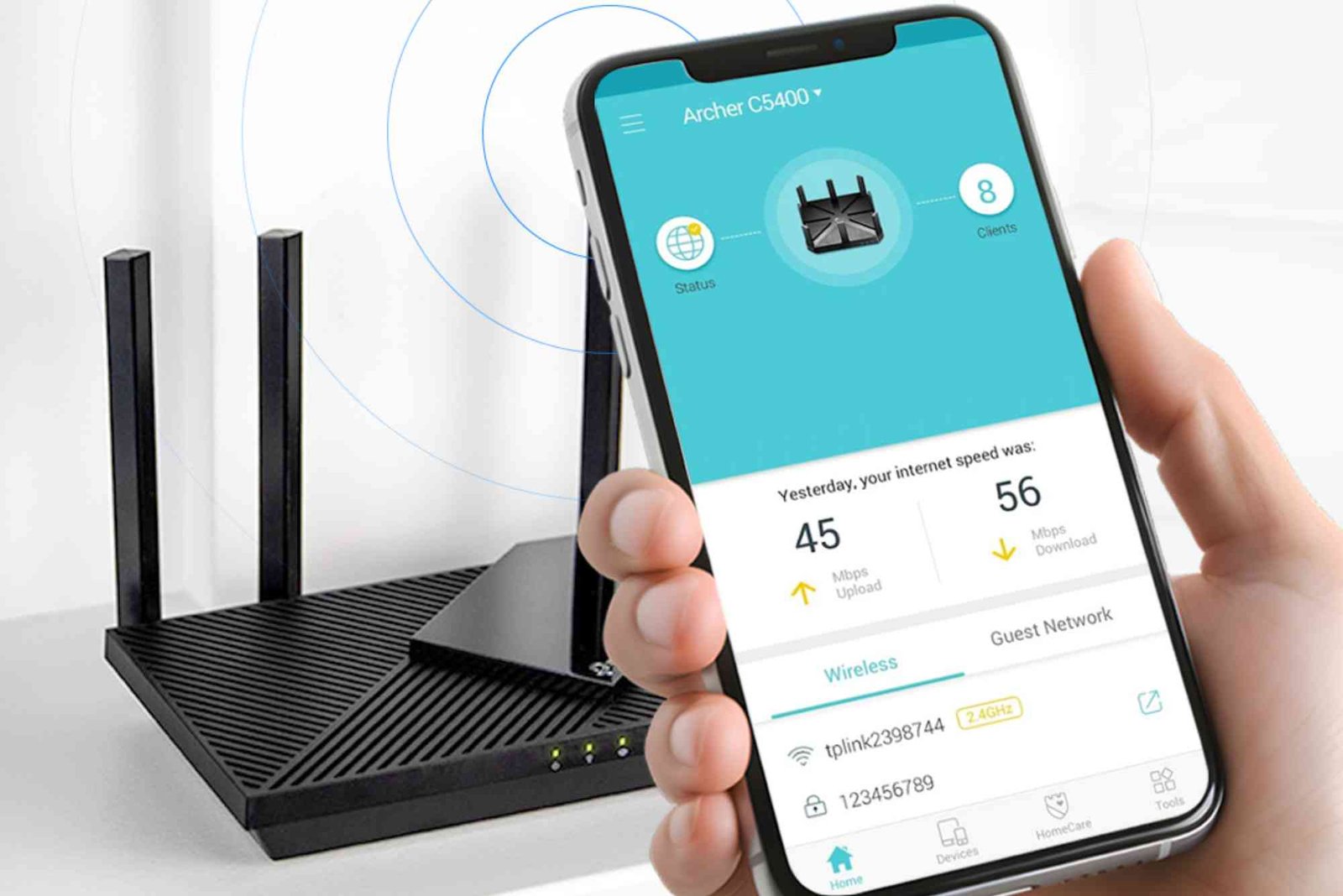
Using TP Link Tether App for Easy Management
TP Link offers a mobile app called Tether, making router management simpler. You can download it from Google Play or Apple Store.
Features of TP Link Tether App:
Quick router setup
View connected devices
Change WiFi name/password
Update firmware
Parental control settings
It’s ideal for users who prefer managing their network via smartphones instead of desktop browsers.
FAQs
How do I log into my TP Link WiFi router?
To log in, connect to the network, open a browser, and enter 192.168.0.1, 192.168.1.1, or tplinkwifi.net. Then, enter your username and password.
What is the default TP Link router login?
The default username and password are both admin. If this doesn’t work, reset the router to restore defaults.
Why can’t I access my TP Link router login page?
Check if you’re connected to the router’s network. If the IP address doesn’t load, try another browser or restart the router.
How do I change my TP Link WiFi password?
Log in to the admin panel, go to Wireless > Wireless Security, enter a new password, and click Save.
Is it safe to use the default TP Link login credentials?
No. It’s highly recommended to change the default credentials to prevent unauthorized access.
How can I reset my TP Link router?
Press and hold the reset button for about 10 seconds until the lights blink. The router will reboot to factory settings.
What is TP Link Tether?
TP Link Tether is a mobile app that lets you manage your router from your phone. It’s free and user-friendly.
Take Control of Your TP Link Router
Learning how to perform a TP Link WiFi router login gives you complete control over your home network. Whether you’re changing your WiFi name, enhancing security, or managing bandwidth, everything starts at the router login page.
Regularly logging in helps you monitor usage, update settings, and fix small issues before they become big problems. With this guide, you now have the tools to manage your TP Link router like a pro.
